You can scan the QR code from the student’s app or the QR code generated by the system to take attendance.
To print the QR code:
1. Go to the Student tab and select the students who need the QR code.
2. Click Action, then select Print label (QR code).
3.
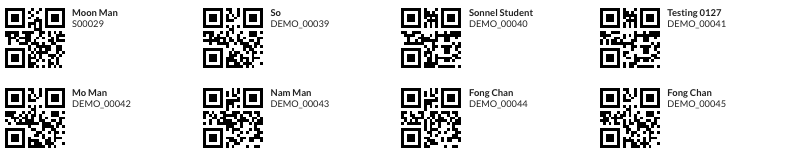
The label will be printed out.
Note:
Use Herma No. 4273 (52.5 x 21.2 mm) labels.
To scan the QR code:
Open the QR code scanner on your mobile phone and scan the student’s QR code.
Log in at Teacher app using your SchoolTracs username and password.
Alternatively, click the three dots in the timetable and select Check in by mobile camera.
The student should present the QR code from their app or the system-generated QR code. Use the camera to scan the code as shown below.
The student’s name, class details, and amount due will be displayed on the screen.
a. The first scan records the check-in. If the student has multiple lessons in one day, all lessons will be marked as Present.
b. The second scan records the check-out. If there are subsequent lessons, their Present status will be removed, and the student will need to check in again for those lessons.
c. A second scan is not allowed within 5 minutes of the first scan.
d. All check-in and check-out records will appear in Check in logs.